iPhone Setup in South Africa

Did you know that setting up your new iPhone can be a breeze with the right guidance? Let’s make your iPhone experience enjoyable from the start!
What You Will Learn
- The essential items needed for a smooth iPhone setup, including a reliable Wi-Fi connection and Apple ID.
- How to choose the right SIM card based on coverage, data packages, and your budget in South Africa.
- The step-by-step initial configuration, from powering on your device to personalizing your display settings.
- Tips for effective load shedding management, including activating Low Power Mode to extend battery life.
iPhone Setup Process Overview
This visual outlines the key stages of setting up an iPhone for South African users, from initial preparations to personalization and load shedding management strategies.
1. Getting Started
- ✓ New iPhone & Wi-Fi
- ✓ Apple ID ready
- ✓ Charged device
- ✓ Choose SA SIM (MTN, Vodacom, Cell C, Telkom)
2. Initial Configuration
- ✓ Power On & Select English (SA)
- ✓ Connect to Wi-Fi (check signal)
- ✓ Set Up Apple ID (crucial for services)
- ✓ Configure iCloud for data backup
3. Personalization
- ✓ Adjust Display (brightness, Dark Mode)
- ✓ Manage Notifications (limit non-essential)
- ✓ Explore Accessibility Features
4. Load Shedding Management
- ✓ Activate Low Power Mode
- ✓ Optimize Background App Refresh
- ✓ Adjust Screen Brightness
- ✓ Use Mobile Data Wisely
Step-by-Step iPhone Setup Process for South African Users
Setting up your new iPhone can feel daunting, but don't worry! At TechWise Mzansi, we're here to guide you through every step of the process, tailored specifically for South African users. Let’s make this setup as smooth as possible, shall we?
Getting Started: What You Need for Your iPhone Setup
Before we dive in, there are a few essential items you should have ready for your iPhone setup. Having these on hand will ensure a seamless experience!
Essential Items to Have Ready
- Your new iPhone
- A reliable Wi-Fi connection
- Your Apple ID (or the ability to create one)
- A charged device, of course!
Being prepared with these items will make the setup process faster and easier. It’s like having all your ingredients ready before cooking a meal!
Choosing the Right SIM Card for South Africa
Choosing a SIM card can be tricky, especially with the various networks available. In South Africa, you’ll want to consider factors like coverage, data packages, and network reliability. This is particularly important given the landscape of mobile phones in South Africa, where different providers offer varying services.
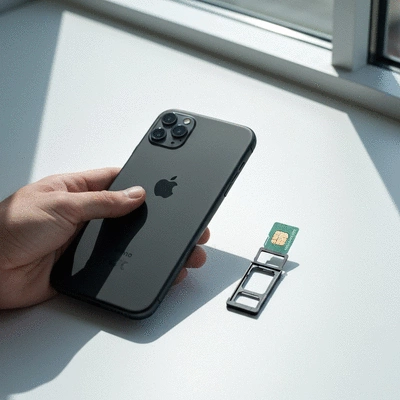
- Popular networks: MTN, Vodacom, Cell C, and Telkom
- Prepaid vs. contract: Which fits your budget?
- Data bundles that suit your usage habits
Choosing the right SIM card not only affects connectivity but can also impact your overall user experience. So take your time and find the best fit for your needs! Ensure your device is type-approved by ICASA, the Independent Communications Authority of South Africa, for legal and optimal operation.
Initial iPhone Configuration Steps
Now that you're set up with essential items, let’s move on to the initial configuration steps. This is where the fun begins!
Powering On Your iPhone and Language Selection
First things first, press and hold the power button until you see the Apple logo. Once powered on, you’ll be prompted to select your language. Choose English (South Africa) or your preferred language. Easy peasy!
Connecting to Wi-Fi: Tips for South African Networks
Next, you’ll need to connect to a Wi-Fi network. If you’re at home, make sure you have your router’s password handy. Here are a few tips:
- Check your Wi-Fi signal strength—move closer if needed.
- Ensure your router is functioning properly; restart it if necessary.
- Consider using local internet service providers for better speed and reliability.
Connecting to Wi-Fi not only helps with setup but also saves your mobile data for later!
Setting Up Your Apple ID: Importance and Benefits
Your Apple ID is key to accessing various services like the App Store and iCloud. If you don’t have one, don’t fret—there’s an option to create it during setup. This ID keeps your purchases and personal data secure, making it essential for a smooth iPhone experience. For detailed instructions on creating a new Apple ID, Apple Support provides comprehensive guidance.
Understanding iCloud: Data Backup and Cloud Storage Options
iCloud is a fantastic feature for backing up your data. You can store photos, documents, and even app data securely in the cloud. Here’s what you should know:
- Basic iCloud storage is free, but consider upgrading if you need more space.
- iCloud syncs your data across all your Apple devices.
- It’s a lifesaver in case you ever need to restore your device or switch to a new one.
By setting up iCloud, you ensure that your important information is safe and accessible whenever you need it!
Personalizing Your iPhone for Enhanced User Experience
Now that we’ve got the basics covered, let’s talk about personalizing your iPhone! Customization can make your device feel truly yours.
Customizing Display Settings: Brightness and Dark Mode
Adjusting your display settings can enhance your user experience significantly. Here’s how:
- Slide to adjust brightness to your comfort level.
- Try out Dark Mode to ease eye strain, especially at night.
- Set auto-brightness for an adaptive display experience.
These small changes can make a big difference in how you interact with your phone daily!
Managing Notifications for a Stress-Free Setup
Notifications can be overwhelming, so it’s wise to manage them early on. You can customize which apps can send you alerts and how they appear.
- Turn off notifications for non-essential apps.
- Set message previews to show only when unlocked for extra privacy.
- Use Do Not Disturb mode during important tasks.
By taking control of notifications now, you'll enjoy a more focused and less distracting experience later!
Exploring Accessibility Features for a Personalized Experience
Your iPhone comes packed with accessibility features designed to enhance usability for everyone. Here are a few worth exploring:
- VoiceOver: A screen reader that helps those with visual impairments.
- Zoom: A built-in magnifier for better visibility.
- Text Size and Display: Adjust these to suit your visual needs.
These features make it easier for everyone to get the most out of their device, regardless of their unique needs.

Pro Tip
Did you know? Customizing your iPhone's settings right from the start can enhance your overall experience significantly. Start by adjusting your display brightness and enabling Dark Mode to reduce eye strain, especially during load shedding hours. These simple tweaks not only make your device easier to use but also help conserve battery life!
Frequently Asked Questions (FAQs) about iPhone Setup in South Africa
- What essential items do I need to set up my new iPhone?
- You will need your new iPhone, a reliable Wi-Fi connection, your Apple ID (or the ability to create one), and a charged device.
- How do I choose the right SIM card in South Africa?
- Consider factors like network coverage (MTN, Vodacom, Cell C, Telkom), whether a prepaid or contract option fits your budget, and data bundles that suit your usage habits. Ensure your device is ICASA type-approved.
- What are the first steps to configure my iPhone?
- Start by powering on your iPhone, selecting your preferred language (e.g., English South Africa), connecting to a strong Wi-Fi network, and setting up your Apple ID. Also, configure iCloud for data backup.
- How can I personalize my iPhone for a better user experience?
- You can customize display settings (brightness, Dark Mode, auto-brightness), manage notifications to reduce distractions, and explore accessibility features like VoiceOver, Zoom, and text size adjustments.
- What tips are there for managing my iPhone during load shedding?
- Activate Low Power Mode, optimize background app refresh settings, adjust screen brightness, and use mobile data wisely to extend battery life during power outages.
Recap of iPhone Setup and Load Shedding Management
As we reach the end of our guide, it's essential to recap the key points for a smooth iPhone setup and effective management during load shedding. By following the steps we've outlined, you can ensure a straightforward setup experience tailored for South African users. Remember, navigating the tech landscape can feel overwhelming, but with the right information and support from TechWise Mzansi, you can tackle any challenge with confidence!
Key Takeaways for a Seamless Setup Experience
Summary of the Setup Process Tailored for South African Users
Your iPhone setup should be simple and efficient! Start by gathering essential items like your SIM card and charger. Next, power on your device, choose your preferred language, and connect to a reliable Wi-Fi network. Don’t forget to set up your Apple ID and understand the benefits of iCloud for your data backup needs. This process is crucial in ensuring you get the most out of your device right from the beginning.
- Gather essential items: iPhone, SIM card, charger, and Wi-Fi access.
- Power on your iPhone and select your preferred language.
- Connect to Wi-Fi and set up your Apple ID for a personalized experience.
- Familiarize yourself with iCloud for secure data backup.
These steps pave the way for a user-friendly experience that aligns with the needs of South African consumers, especially when you consider factors like load shedding.
Importance of Power Saving Techniques during Load Shedding
As load shedding continues to be a challenge for many South Africans, it's vital to integrate power-saving techniques into your daily use of your iPhone. Activating Low Power Mode can significantly extend your battery life when you know you'll be without power. Additionally, managing background app refresh and adjusting settings can help you make the most of your device during these unpredictable outages.
- Activate Low Power Mode to conserve battery during outages.
- Optimize background app refresh settings to save energy.
- Adjust screen brightness and other settings to extend battery life.
- Consider using mobile data wisely to prevent unnecessary battery drain.
Engagement and Feedback: Share Your Experience
Your feedback is incredibly valuable to us at TechWise Mzansi! After implementing these setup and load shedding strategies, we’d love to hear about your experiences. Sharing your journey not only helps you connect with other users but also builds a community of informed consumers supporting each other through everyday tech challenges.
Encouraging User Comments on Their Setup Journey
Have you recently set up your iPhone? What tips or tricks did you find most useful? Feel free to drop a comment below! By sharing your insights, you can assist fellow South Africans in optimizing their tech experiences.
Poll: What Load Shedding Tips Worked Best for You?
We'd also like to gather your opinions through a quick poll! What power-saving tips have you found to be most effective during load shedding? Your input can help others discover new strategies that work well in real-world scenarios. Let's keep the conversation going and support one another in navigating our unique tech landscape!
Recap of Key Points
Here is a quick recap of the important points discussed in the article:
- Gather essential items: iPhone, SIM card, charger, and Wi-Fi access.
- Power on your iPhone and select your preferred language.
- Connect to Wi-Fi and set up your Apple ID for a personalized experience.
- Familiarize yourself with iCloud for secure data backup.
- Activate Low Power Mode to conserve battery during outages.
- Optimize background app refresh settings to save energy.
- Adjust screen brightness and other settings to extend battery life.